How to Create a Wishlist From Any Website
Learn how to create a wishlist from any website. Save products from different stores in one place with a simple copy-and-paste workflow.
The jacket from an independent designer. The lamp you found at midnight. The extremely unnecessary bag charm you’re still thinking about.
Everything you want is scattered across different websites. Keeping track of it shouldn’t require 27 open tabs.
To create a wishlist from any website, use a universal wishlist: a place to save product links from different stores together. Copy a product’s URL, paste it into your wishlist, and save it for later.
Here’s how to do it with Snag Mode, plus a few ways to keep your list useful as it grows.
What is a universal wishlist?
A universal wishlist lets you collect products from multiple websites in one place.
A store’s built-in wishlist usually holds items sold by that store. A universal wishlist can bring together finds from different retailers, independent brands, and specialty shops.
That means the sneakers, vintage mirror, and weird little ceramic frog can all live on the same list—even if they come from completely different corners of the internet.
You can use one to plan purchases, collect gift ideas, or keep track of things that feel very you.
How to create a wishlist from any website with Snag Mode
1. Find the product you want to save
Open the item’s individual product page.
Use the page for the actual product rather than a store’s homepage, search results, or an entire category. A direct product link makes it easier to return to the right item later.
If the product comes in different sizes or colors, choose your preferred option before copying the link. Some stores include that selection in the URL; others don’t, so check it again before buying.
2. Copy the product link
On a computer, copy the URL from your browser’s address bar.
On your phone, use your browser’s share menu and choose Copy Link, or copy the address directly.
Whenever possible, use the retailer’s product link rather than a temporary social media redirect. You want a link that takes you back to the item itself.
3. Paste the link into Snag Mode
Open Snag Mode and paste the product URL into the link field.
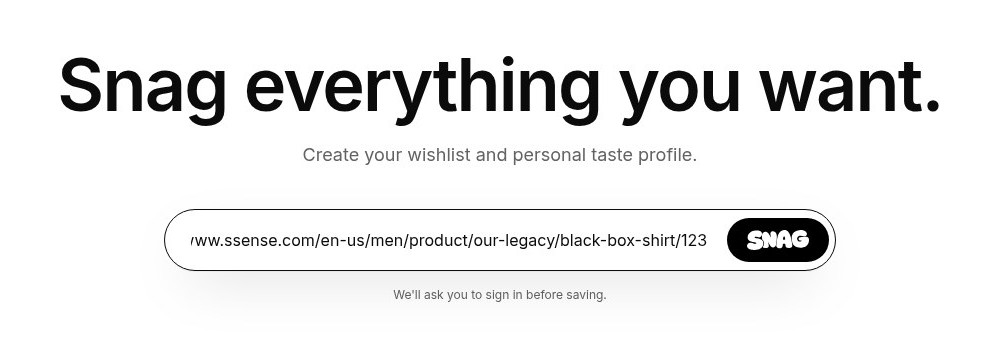
You’ll be asked to sign in before saving. Follow the prompts to finish adding the item to your wishlist.
Now you have a place to return to it without remembering which store it came from—or which group chat you dropped the link into.
Pro tip: After you save, add your own photos to show how you style, wear, or use your finds. If a website blocks image imports or Snag Mode can’t grab the product photos, you’ll be prompted to upload a product screenshot or your own photo to complete your snag.
4. Repeat with finds from other stores
Found something else on another website? Copy that product’s link and repeat.
The same workflow works whether you’re building a birthday wishlist, planning a room refresh, or collecting clothes for a future version of yourself with a much larger budget.
Start with a few things you actually want. You can build the list as you browse.
What should you put on your wishlist?
A useful wishlist can hold both practical purchases and things you’re still considering.
Try saving:
- Everyday upgrades: Sneakers, headphones, kitchen tools, or a better work bag.
- Gift ideas: Specific products you’d be happy to receive.
- Fashion finds: Clothing, jewelry, accessories, and pieces from independent designers.
- Home inspiration: Furniture, lighting, art, and decorative objects.
- Future purchases: Bigger items you want time to think about.
You don’t need an occasion to start one. Sometimes the reason is simply: “I want to find this again.”
How to keep your wishlist useful
Save the specific item
A link to a brand’s homepage won’t help much if you’re trying to remember one particular pair of boots.
Save the individual product page whenever you can. Before adding it, check that the page shows the item you intended.
Keep track of important variations
A product link may not preserve your chosen size, color, finish, or configuration.
If those details matter, keep a note of them alongside your shopping plans. This is especially useful when someone else may be buying the item for you.
Review your list occasionally
Your taste changes. Products sell out. Something you desperately wanted three months ago may no longer feel worth it.
Give your wishlist an occasional edit. Remove things you no longer want and revisit the items you keep thinking about.
A wishlist should make shopping decisions easier, not become another digital junk drawer.
Check the retailer before purchasing
A saved link helps you return to a product, but the retailer controls its current price, availability, shipping, and returns.
Before buying, open the original page and confirm the details—especially for sale items, limited releases, and vintage finds.
What if a website won’t import correctly?
Some websites restrict automated access or load product details in ways that saving tools can’t reliably read.
If an item doesn’t save as expected:
- Open the original retailer’s product page.
- Copy the full URL again.
- Make sure you haven’t copied a search page, shopping cart, or expired redirect.
- Try adding the direct product link again.
If the product photos still don’t import, upload a product screenshot or your own photo to complete your snag.
“Save from any website” describes the goal of a universal wishlist. It doesn’t guarantee that every site will provide a perfect product preview.
Why use a wishlist instead of bookmarks or screenshots?
Bookmarks can save links, but shopping finds can get buried among everything else you bookmark.
Screenshots capture the look of an item, but they don’t always tell you where to buy it. A camera roll full of cropped product photos quickly turns into a detective assignment. (More on that in why screenshots make a bad wishlist.)
A universal wishlist gives your shopping finds a dedicated home. You can return to the products you saved without searching your browser history or trying to identify a lamp from six pixels of a logo.
Frequently asked questions
Can I create one wishlist for multiple stores?
Yes. A universal wishlist is designed to bring product links from different stores together. You don’t need a separate list for each retailer. See how to make one wishlist for multiple stores.
Do I need an account with every store?
You generally don’t need a retailer account to copy a publicly accessible product link. Snag Mode asks you to sign in before saving. A retailer may have its own account requirements when you purchase.
Can I create a wishlist on my phone?
Yes. You can copy a product link from your mobile browser, open Snag Mode, and paste it into the link field.
Does saving an item reserve it?
No. Adding something to a wishlist doesn’t reserve inventory or lock in its price. Availability and pricing can change before you buy.
Do I have to buy through the wishlist?
Saving an item doesn’t commit you to buying it. When you’re ready, return to the retailer’s website to check the details and complete your purchase.
Your next find deserves a better home than an open tab
Start with the thing you’ve been meaning to save. Copy the product link, paste it into Snag Mode, and keep building from there.
Start your own stash
Save products from any store, build a profile that looks like your taste, and share only what you mean to share.